
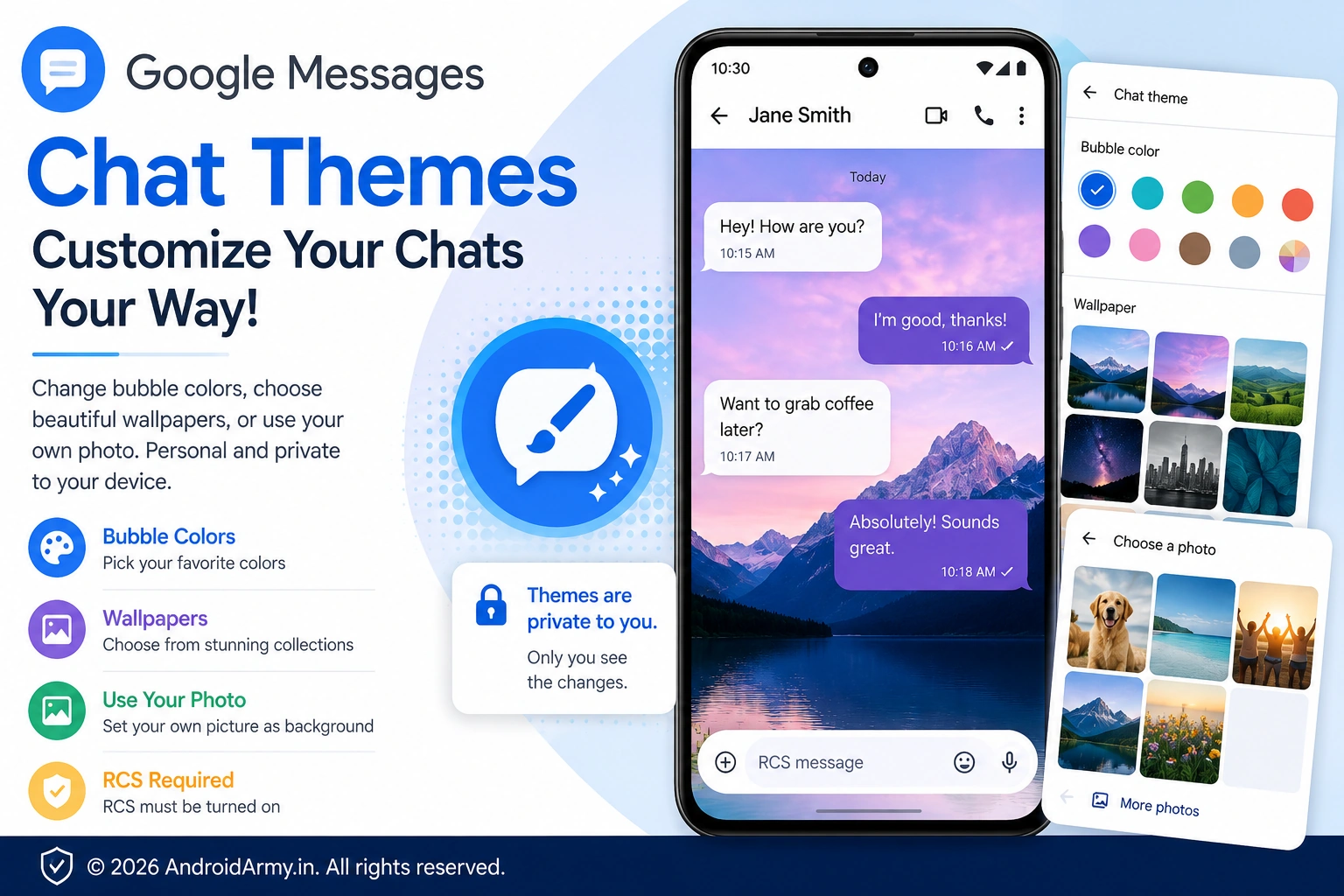
Google Messages has officially expanded its chat customization options with Chat Themes, allowing users to change the look of individual conversations with different colors and wallpapers. You can select a preset color, choose a Google-provided wallpaper, or use a photo from your own gallery.
The important limitation is that your chat theme is private to your device. The other person in the conversation does not see the background or color changes you make. Google also requires RCS for the feature.
What are Google Messages Chat Themes?
Chat Themes are a customization feature for Google Messages that changes the visual appearance of an individual conversation.
You can customize two main elements:
- Message bubble colors
- Chat background or wallpaper
Google provides preset wallpaper collections, while also allowing you to select a personal photo from your phone. The available wallpaper categories include options such as Animals, Architecture, Black & White, Cityscapes, Landscapes, Macro, Space, Sunsets and Textures.
The feature replaces the older Change colors customization option that Google Messages previously offered for RCS conversations.
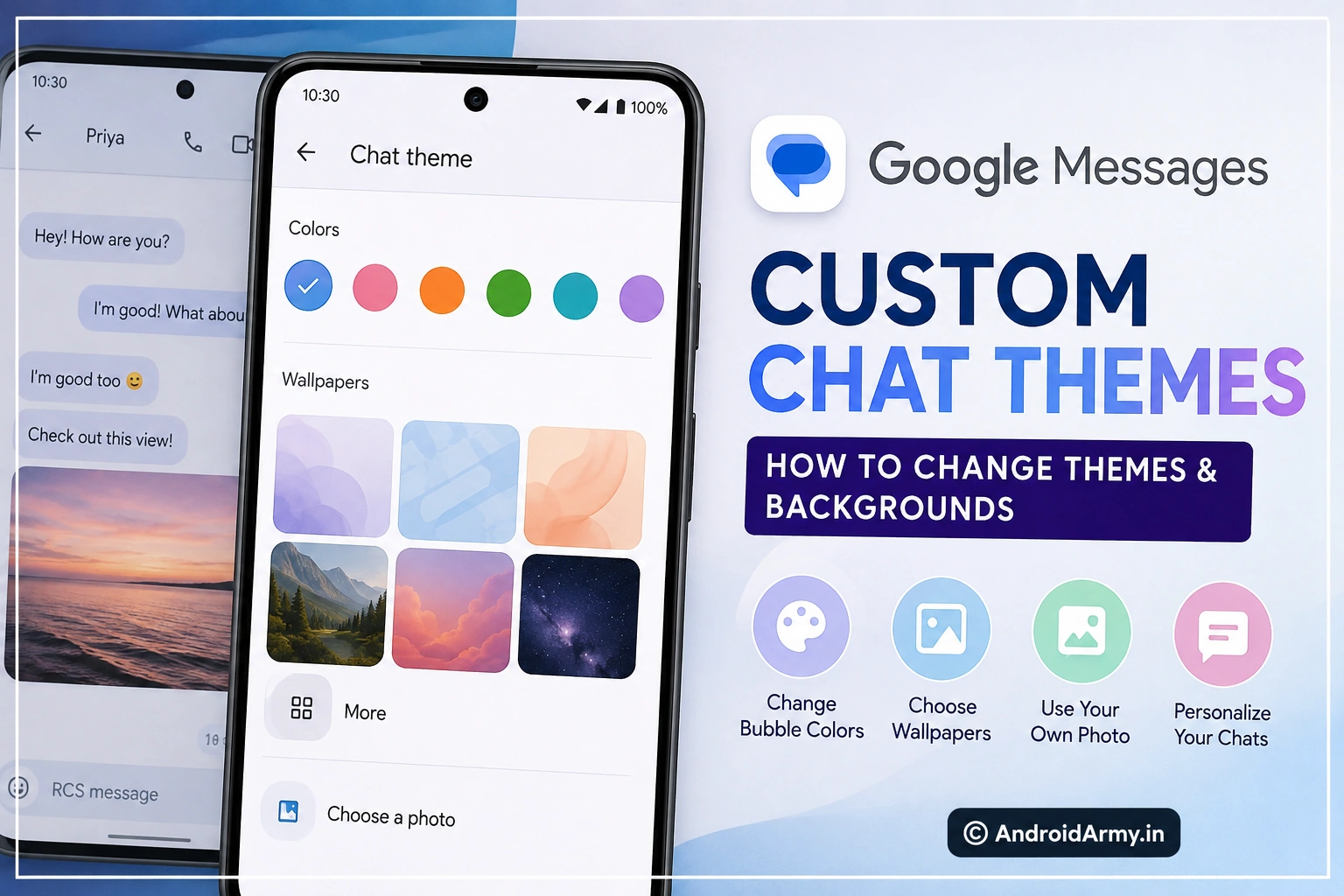
How to change the Chat Theme in Google Messages
If the feature is available on your phone, changing a conversation’s appearance only takes a few steps.
Step 1: Open Google Messages
Launch the Google Messages app on your Android phone.
Then open the individual or group conversation you want to customize.
Step 2: Open the Chat Theme menu
At the top of the conversation, tap the recipient or group name.
Alternatively, tap the three-dot More menu in the upper-right corner.
Select Chat theme. Google lists both routes in its current support documentation.
Step 3: Choose a color
After opening Chat theme, select a color theme from the available palette.
The color controls the appearance of your message bubbles and other parts of the conversation’s visual theme.
Google’s newer Chat Theme system also includes a Dynamic Color option that can respond to the selected background, along with other static color choices.
Step 4: Choose a wallpaper
Under the wallpaper section, you can select one of Google’s preset backgrounds.
If you want something more personal, choose Choose a photo and select an image from your phone’s gallery.
Step 5: Preview and apply
After choosing your color and wallpaper, continue to the preview and tap Apply when you’re satisfied with the result.
The message bubbles can automatically adjust to complement the selected background, while Google also allows you to manually change the color selection.
Can you use your own photo as a Google Messages background?
Yes.
Google Messages allows you to select a personal image from your phone’s gallery through the Choose a photo option.
That means you can use a family picture, travel photo, pet photo, artwork or another image as the background for a conversation.
This customization applies to the selected conversation rather than changing the appearance of every Google Messages chat.
Can you change Google Messages bubble colors?
Yes.
Chat Themes include a color palette for changing the appearance of message bubbles. Google also provides a Dynamic Color option and additional preset colors.
The practical benefit is that different conversations can have different visual appearances. For example, you could use one wallpaper and color combination for a family group while keeping another conversation more minimal.
Will the other person see your Chat Theme?
No.
This is one of the most important details to understand.
Google says Chat Theme changes are only visible to you on your device. Changing the background or bubble colors does not change what the recipient sees in their own Google Messages app.
So if you customize a conversation with a personal photograph, the recipient does not automatically receive that photograph as their chat wallpaper.
Why can’t I find Chat Theme in Google Messages?
The most likely issue is availability.
Google has been rolling the feature out progressively rather than making it appear on every device simultaneously. Earlier reports during the rollout showed that the feature could be absent even on supported Google Messages versions.
If you do not see Chat theme, check the following.
Make sure RCS is enabled
Google’s Messages Community announcement specifically states that RCS must be turned on for Chat Theme.
To check RCS:
- Open Google Messages.
- Tap your profile picture or icon.
- Open Messages settings.
- Tap RCS chats.
- Check whether RCS is enabled.
Google notes that RCS availability can depend on the device, carrier and region.
Update Google Messages
Make sure Google Messages is running the latest version available for your device through the official app distribution channel.
However, an updated app does not necessarily mean the Chat Theme feature will appear immediately. Google’s rollout can also involve server-side availability, so some users may receive the option later than others.
Check an RCS conversation
If Chat Theme is missing, verify that the conversation is using RCS rather than traditional SMS/MMS.
Google describes RCS as the messaging standard that enables richer messaging features, including high-resolution media, typing indicators and read receipts.
How to reset a Google Messages Chat Theme
If you no longer want a customized appearance, Google provides a Reset to default option.
Open the customized conversation, enter Chat theme, select Reset to default, and then apply the change.
This returns the conversation to its standard appearance.
What Chat Themes do not change
Chat Themes are primarily a visual customization feature. They do not give you a new messaging protocol or change how the underlying message is delivered.
RCS remains the technology responsible for supported richer messaging functions. Google says RCS can provide features such as high-resolution media sharing, typing indicators, read receipts and messaging over mobile data or Wi-Fi.
The theme itself is also local to your device. It does not force the recipient to use your selected wallpaper or bubble colors.
Google Messages Chat Themes: What you can customize
| Customization | Available? |
|---|---|
| Message bubble colors | Yes |
| Chat wallpaper | Yes |
| Personal photo as wallpaper | Yes |
| Google preset wallpapers | Yes |
| Different theme for individual conversations | Yes |
| Theme visible to recipient | No |
| RCS required | Yes |
Google’s current support documentation confirms the background, color and personal-photo customization, while Google’s announcement confirms that themes remain private to the user.
The important limitation for Android users
The biggest thing to remember is that Chat Themes are a local visual customization.
If you choose a photo of your pet as the wallpaper for a conversation, that does not mean the same photo will appear behind the messages on the other person’s phone.
This makes the feature useful for personal organization and customization, but it is not a shared chat-theme system.
FAQ
Does Google Messages have custom backgrounds?
Yes. Google Messages Chat Themes allow you to choose preset wallpapers or select your own photo from your gallery for a conversation.
Do Google Messages themes work with SMS?
Google’s Chat Theme announcement says RCS must be turned on, so users should not assume the feature is available for ordinary SMS conversations.
Can I use my own picture as a Google Messages wallpaper?
Yes. The Chat Theme interface includes Choose a photo, allowing you to select an image from your device.
Can the person I’m texting see my theme?
No. Google says Chat Theme customizations are only visible to the person who created the theme on their device.
Why is Chat Theme missing from my Google Messages app?
The feature may not yet be available for your account or device because Google has used a staged rollout. Also verify that RCS is enabled and that you are checking an RCS conversation.
How do I restore the default Google Messages background?
Open the conversation’s Chat theme menu, choose Reset to default, and apply the change.
Official / Reliable Sources
- Google Messages — Customize conversations — Google’s official instructions for Chat Themes, colors, wallpapers and resetting themes.
- Google Messages Community — Custom backgrounds and themes announcement — Google Messages Community Manager’s announcement confirming the feature and RCS requirement.
- Google Messages — Learn about RCS messaging — Google’s official explanation of RCS and its requirements.