
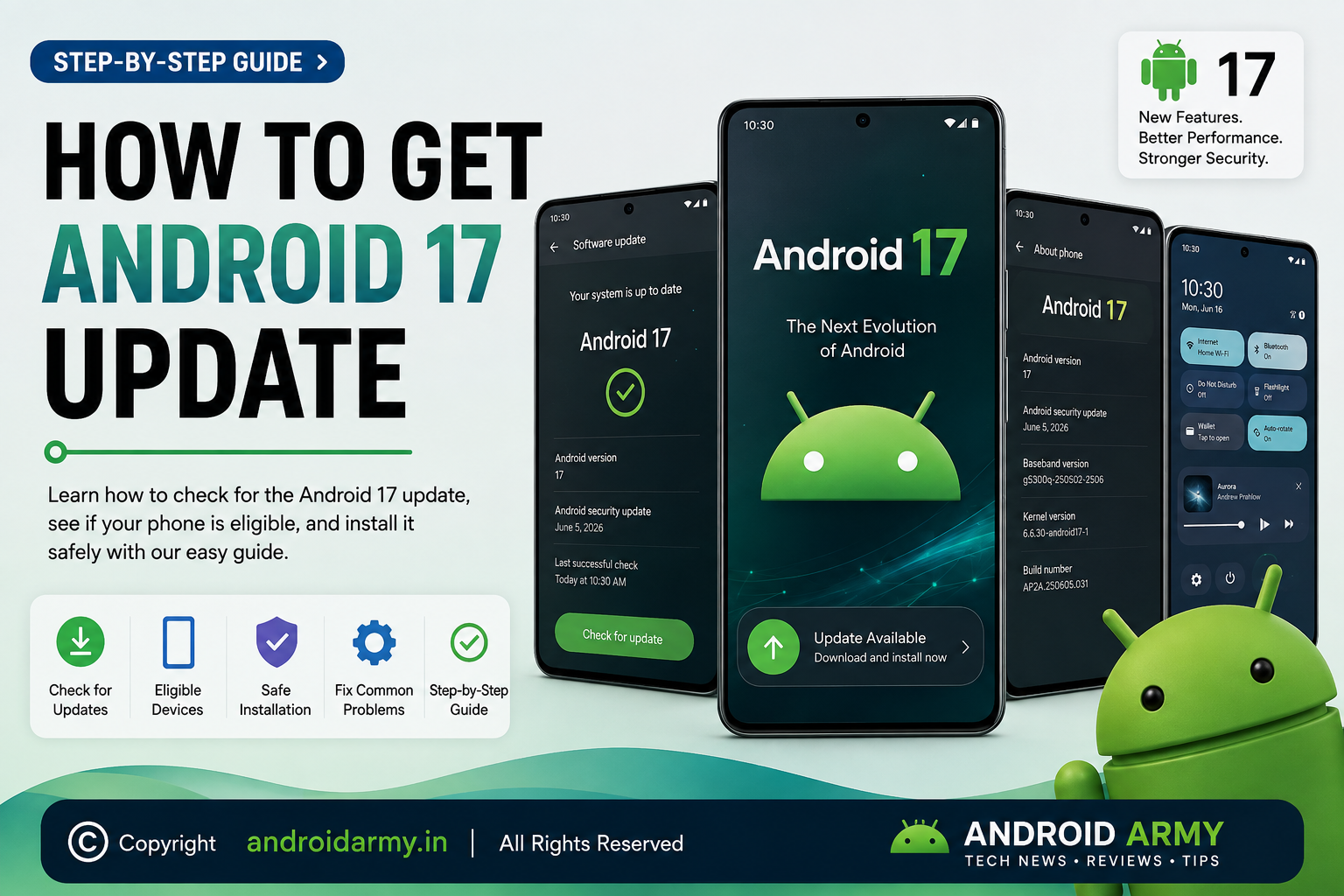
If you want to know how to get Android 17 update on your phone, the safest method is to use your device’s built-in software updater. You normally do not need to download Android 17 from a random website or manually install a firmware file.
Google says Android 17 started rolling out to Pixel devices on June 16, 2026, with other eligible Android devices following throughout 2026. However, the exact timing depends on your phone manufacturer, model, carrier, and region.
This guide explains how to check for Android 17, what to do before installing it, and what to try if the update does not appear.
Who Can Get the Android 17 Update?
Before trying to install Android 17, you need to determine whether your phone is actually eligible.
Android updates are controlled by the phone manufacturer. Google handles Android itself, but companies such as Samsung, Motorola, Xiaomi, OnePlus, OPPO, and others decide when and which devices receive their customized versions of the operating system.
Google’s official Android 17 announcement says the release is rolling out first to Pixel devices and then to other eligible Android devices throughout 2026.
For Pixel phones, Google publishes a specific software-support schedule. Pixel 8 and newer phones receive seven years of OS and security updates, while Pixel 6, Pixel 6 Pro, Pixel 6a, Pixel 7, Pixel 7 Pro, Pixel 7a, and Pixel Fold receive five years of updates from their respective Google Store availability dates.
If you use another Android brand, check that manufacturer’s official support page or update policy before assuming that Android 17 is available.
What You Should Do Before Installing Android 17
A major Android update can be large, so it is worth preparing your phone first.
1. Connect to Wi-Fi
Use a reliable Wi-Fi connection before downloading the update.
Google recommends Wi-Fi for Android updates and notes that updates can be large and may take some time.
2. Charge Your Phone
Make sure your phone has enough battery before starting the installation.
Google recommends charging a Pixel phone to at least 75% before updating.
For other manufacturers, follow the battery requirement shown on the update screen.
3. Free Up Storage
Check your available storage before downloading Android 17.
If there is not enough free space, the update may fail to download or install. Google specifically lists insufficient storage as one of the common Android update problems.
4. Back Up Important Data
A normal OTA update is designed to preserve your personal data, but keeping a recent backup is still a sensible precaution before installing a major operating-system update.
Back up important photos, videos, contacts, documents, and other files before proceeding.
How to Get the Android 17 Update on a Google Pixel
If you have an eligible Pixel phone, checking for Android 17 is straightforward.
Step 1: Open Settings
Open the Settings app on your Pixel.
Step 2: Open System
Scroll down and tap System.
Step 3: Open Software Updates
Tap Software updates or System update, depending on the software version shown on your phone.
Google’s official instructions say Pixel users can check the update status from the System > Software updates section.
Step 4: Check for the Update
If Android 17 is available for your phone, the update information will appear on the screen.
Tap the available update and follow the instructions.
Step 5: Download and Install
Let the phone download the update completely.
Once the installation process begins, your phone may restart. Do not turn it off while the system update is being installed.
Step 6: Check Your Android Version
After the phone restarts:
- Open Settings.
- Tap About phone.
- Tap Android version.
- Check the Android version number.
Google’s Android help documentation confirms that the Android version, security update level, and build number can be found in this area.
If it shows Android 17, the update has been installed successfully.
How to Get Android 17 on a Samsung Galaxy Phone
Samsung uses its own software-update system, so the menu can differ slightly depending on the Galaxy model and software version.
The current Samsung support instructions use:
Settings → Software update → Download and install
On some Galaxy devices, the update menu may appear under About device → Software update. Samsung says the exact location can vary by model and operating system.
Samsung update steps
- Open Settings.
- Tap Software update.
- Tap Download and install or Check for updates.
- Wait while the phone checks Samsung’s servers.
- If Android 17 is available for your device, follow the on-screen instructions.
- Allow the phone to restart and complete the installation.
If Android 17 has not been released for your particular Galaxy model, the updater will not offer it yet.
How to Get Android 17 on Other Android Phones
The exact menu differs between manufacturers, but the basic process is similar.
Look for an option called:
- Software update
- System update
- System software update
- Check for updates
The general process is:
Settings → Software/System Update → Check for Updates → Download → Install
Google also notes that update schedules vary by device, manufacturer, and mobile operator.
Xiaomi phones
Xiaomi provides a system-update option for checking and installing available software. Depending on the model and software version, the update interface can differ.
Xiaomi’s support documentation says users can check for updates from the phone’s update settings. On supported HyperOS devices, Xiaomi also documents checking through Settings → About phone → Xiaomi HyperOS → Check for updates.
Other manufacturers
For OnePlus, Motorola, OPPO, vivo, HONOR, ASUS, Sony, and other brands, use the manufacturer’s official software-update menu and support documentation.
Do not assume that because Android 17 is available for one brand, it is automatically available for another brand.
What Is an Android 17 OTA Update?
You may see the term OTA update when searching for Android 17.
OTA means Over the Air.
It is a software update delivered directly to your phone through the manufacturer’s update system. You do not normally need to connect your phone to a computer.
For most users, the OTA method is the preferred way to install a major Android update because the phone checks the update package and handles the installation process.
Xiaomi, for example, documents OTA-based system upgrades and describes verification of downloaded system packages before installation.
Do You Need to Download Android 17 Manually?
Usually, no.
If Android 17 is officially available for your phone, the recommended first step is to check the built-in software updater.
You should not search random websites for an Android 17 APK or firmware file.
An Android operating-system upgrade is not the same as installing an ordinary app. Installing an incorrect firmware package can cause serious software problems.
If you have a specific reason to manually install Android 17, use only the manufacturer’s official documentation and files intended for your exact device model and software channel.
For beginners, the built-in OTA update is the safer choice.
What If Android 17 Does Not Appear?
If you checked for an update and Android 17 is not listed, that does not automatically mean your phone is unsupported.
There are several possible reasons.
The update has not reached your device yet
Manufacturers often use phased rollouts.
Google says Pixel software updates are released in phases and may take a few weeks to reach a particular device depending on the carrier and device.
Your phone is not eligible
Older phones may have reached the end of their Android-version support period.
Google’s Pixel support page, for example, lists Pixel 5a and earlier devices as no longer receiving Android version or security updates.
Your carrier has not released it yet
Carrier versions can sometimes receive software at a different time from unlocked models.
Google specifically notes that Pixel update timing can depend on the operator and device.
Your region has a different rollout schedule
Manufacturers may release updates in stages across different countries and regions.
This is one reason two people using the same phone model can receive the update at different times.
Android 17 Update Is Available but Won’t Download
If the update appears but does not download successfully, try these steps.
Check your internet connection
Switch to a reliable Wi-Fi network and try again.
Check available storage
Free up storage if your phone reports that there is not enough space.
Google lists insufficient storage as a common reason an Android update cannot proceed.
Restart the phone
Restart your device and check for the update again.
Try again later
If the update server is busy or the download fails temporarily, waiting and checking again can help.
Google says that if a Pixel update starts downloading but does not finish, the phone can automatically try again over the following days.
Android 17 Update Is Installed but the Phone Is Slow
Do not immediately assume that something has gone wrong.
After a major software update, the phone may temporarily perform background optimization and setup tasks.
Google notes that a Pixel’s battery can normally drain more than usual immediately after an update while the phone downloads, optimizes, and sets up the new software.
Give the phone some time before judging its performance.
If problems continue, check for additional system updates and app updates.
Should You Install Android 17 Immediately?
If Android 17 is officially offered for your device, installing it through the normal software updater is generally the simplest approach.
However, you should still:
- Back up important data.
- Use a stable Wi-Fi connection.
- Make sure you have enough storage.
- Charge the phone.
- Read any manufacturer-specific update notes.
- Allow the installation to finish without interrupting it.
If you depend on your phone for critical work, you may prefer to wait briefly after a major release so that any early software issues can be identified and addressed through subsequent updates.
How to Check Your Current Android Version
Before looking for Android 17, check which Android version your phone is currently running.
On many Android devices:
- Open Settings.
- Tap About phone.
- Find Android version.
Google’s official Android instructions use this method to find the Android version, security-update level, and build number.
This is useful because you can confirm whether Android 17 has actually been installed after the update.
What You Should Not Do
Avoid these common mistakes when trying to get Android 17.
Do not install random firmware files
A firmware package made for another model or region may not be compatible with your phone.
Do not trust unofficial download buttons
A website claiming to offer a “one-click Android 17 download” does not necessarily provide an official Android update.
Do not confuse an app update with an Android update
Updating Google Play apps does not upgrade the phone’s Android operating system.
Do not assume every phone gets Android 17
Android version support depends on the manufacturer and device.
Google explicitly tells users with non-Pixel Android devices to contact their manufacturer or operator for update information.
The Safest Way to Get Android 17
For most users, the process is simple:
Check eligibility → Back up important data → Connect to Wi-Fi → Charge your phone → Open Software/System Update → Check for updates → Download Android 17 → Install → Restart → Verify the Android version
You do not need to make the process complicated.
If Android 17 is not available yet, the best approach is to check your manufacturer’s official update information rather than downloading an unofficial firmware package.
Conclusion
The easiest answer to how to get Android 17 update is to use your phone’s built-in software updater.
On a Pixel, open Settings → System → Software updates and check for the latest available version. Google confirms that Android 17 began rolling out to Pixel devices in June 2026 and that other eligible Android devices will receive it throughout 2026.
Samsung Galaxy users can check Settings → Software update → Download and install, while other Android brands provide their own update menus.
If the update is not available yet, don’t assume that your phone is unsupported. The rollout may simply not have reached your model, region, or carrier.
The safest rule is simple: use the official OTA update offered by your phone manufacturer and avoid unofficial Android 17 downloads.
9. FAQ
How do I get the Android 17 update?
Open your phone’s Settings, find Software update or System update, and check for available updates. If Android 17 is officially available for your device, follow the on-screen installation instructions.
Is Android 17 available now?
Yes. Google began rolling Android 17 out to Pixel devices on June 16, 2026. Other eligible Android devices are receiving the update on manufacturer-specific schedules throughout 2026.
How do I check for the Android 17 update?
On many Android phones, go to Settings → System/Software update and check for updates. The exact menu can vary by manufacturer.
Can I download Android 17 manually?
Some manufacturers provide official manual installation methods, but beginners should normally use the built-in OTA updater. Avoid firmware files from unofficial websites.
Why can’t I see Android 17 on my phone?
Your device may not be eligible, or the update may not have reached your model, region, carrier, or software channel yet. Android update schedules vary by manufacturer and operator.
Do I need Wi-Fi to install Android 17?
Wi-Fi is recommended because system updates can be large. Google recommends connecting to Wi-Fi before updating.
How much battery do I need for the Android 17 update?
Google recommends charging Pixel devices to at least 75% before updating. Other manufacturers may have different requirements.
Will updating to Android 17 delete my data?
A normal OTA system update is designed to update the operating system without requiring a factory reset. However, backing up important data before a major update is still recommended.
1 thought on “How to get the Android 17 update?”