
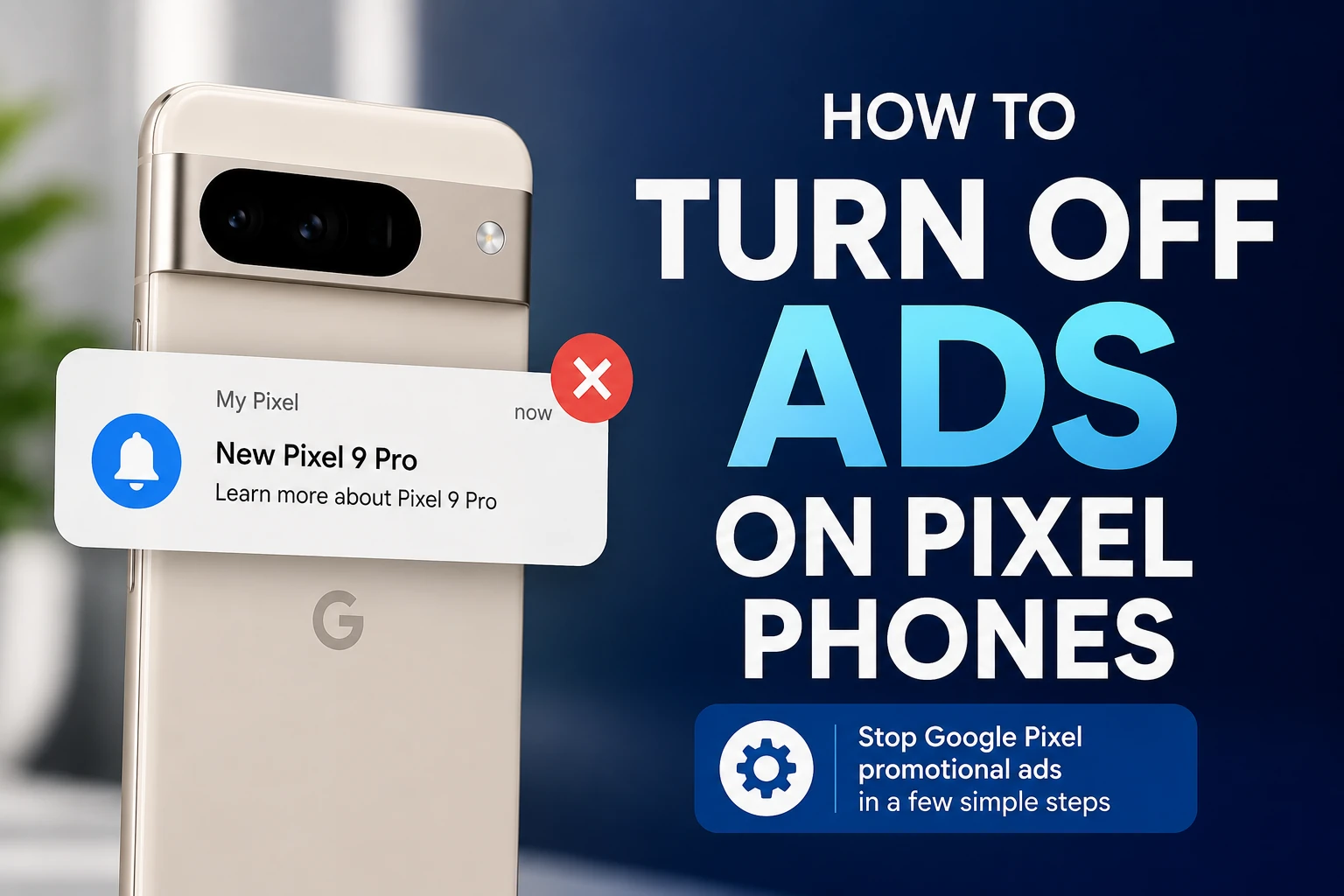
Want to turn off ads on Pixel phones? If you’re seeing promotional notifications from Google’s My Pixel app, you can disable the relevant notification category without turning off every notification on your Pixel.
Following the launch of the Pixel 11 series, reports surfaced of older Pixel phones receiving promotional notifications advertising Google’s newer hardware. Android Authority reported receiving these promotions through the My Pixel app, the successor to Pixel Tips.
The good news is that you don’t necessarily need to disable the entire app. Android’s notification controls let you turn off specific notification categories, including New products and offers, while keeping useful alerts such as feature updates and order information.
Why are ads appearing on Pixel phones?
The notifications are associated with the My Pixel app.
The app was previously known as Pixel Tips and focused mainly on tutorials, phone tips, Android feature information and support. According to Android Authority’s report, the rebranded My Pixel app also includes a Store tab for purchasing Google hardware.
That broader role gives the app another reason to send promotional notifications, including information about Google’s hardware products.
This doesn’t mean that every Pixel phone is suddenly covered with traditional advertisements throughout the operating system. The current issue is more specifically about promotional notifications from the My Pixel app.
How to turn off ads on Pixel phones
If you’re receiving promotional notifications from My Pixel, you can disable the relevant notification category instead of turning off every notification from the app.
Step 1: Find the My Pixel app
Locate the My Pixel app on your Pixel phone.
Step 2: Open App info
Long-press the My Pixel app icon and select App info.
Step 3: Open notification settings
Tap Notifications.
Google’s Pixel support documentation confirms that Android allows users to control notifications on an app-by-app basis. You can also change these settings directly from a notification by touching and holding it.
Step 4: Open the My Pixel notification categories
Under the notification settings, look for Notification categories and select My Pixel if that option appears.
The available categories can vary depending on the software and app version. Android Authority reported categories including feature and tip notifications, account and order updates, surveys and research, basket reminders, and New products and offers.
Step 5: Turn off New products and offers
Find New products and offers and switch it off.
This is the important setting if your goal is to stop promotional product notifications while continuing to receive other useful My Pixel alerts.
You can leave other categories enabled if you still want feature information or order-related notifications.
You don’t have to disable the entire My Pixel app
Android gives Pixel users more control than simply switching all notifications from an app on or off.
Google’s official documentation says that users can open Settings → Notifications → App notifications, select an app and control its notifications. Some apps also provide separate notification categories, allowing individual types of notifications to be managed independently.
That’s useful in this situation because disabling My Pixel completely could also remove notifications that you actually want.
For example, you might want:
- New feature notifications: On
- Account or order updates: On
- Product and offer promotions: Off
The exact categories available on your phone may differ.
What if you can’t find “New products and offers”?
Don’t assume your phone is broken if you don’t see the same category.
Android notification categories can depend on the app version, device software and which notification types the app currently provides. Google’s Pixel documentation confirms that some apps expose different notification categories that can be managed individually.
If you recently received a promotional notification, there is also an easier method:
- Wait for the notification to appear.
- Touch and hold it.
- Open its notification settings.
- Look for the relevant category.
- Disable that category if available.
This method can be easier because it takes you directly to the notification source.
Don’t confuse promotional notifications with every Google notification
Not every notification from Google is an advertisement.
Your Pixel can receive notifications for security information, system events, app updates, orders, weather, messages and other services. Google’s notification controls are designed to let you manage these different sources separately.
Google also has a Notification Organizer on supported Pixel devices and regions. Its categories include Promotions and News, with the Promotion and News categories enabled by default. The feature is available in supported regions including the United States.
That feature is different from the My Pixel notification category described above, so disabling Notification Organizer isn’t necessarily the solution to My Pixel promotional notifications.
What if the promotion appears somewhere other than notifications?
Pixel has other surfaces that can display information, such as At a Glance on the home and lock screens.
Google says At a Glance can show information such as upcoming events, weather, tickets and other updates, and individual categories can be customized from its settings.
So if you’re trying to remove a particular piece of promotional or unwanted content, first identify where it originates. A notification, an app screen and At a Glance are controlled by different settings.
Should you turn off all Pixel notifications?
Probably not.
If the problem is specifically promotional advertising, turning off every notification from My Pixel is a more aggressive solution than necessary.
A better approach is to disable only the promotional category if your phone provides it. That preserves potentially useful notifications while reducing unwanted marketing.
This is also why Android’s notification-category system is useful: it gives users more granular control than a simple all-or-nothing switch.
What has Google officially confirmed?
The important distinction is between Google’s notification controls and the reports about promotional Pixel notifications.
Google officially documents that Pixel users can control notifications by app and, where supported, by notification category.
The recent reports of promotional Pixel notifications, including the specific New products and offers category in My Pixel, come from independent reporting rather than a Google announcement saying that Pixel phones are now broadly displaying system-wide advertising.
So it would be inaccurate to describe this as Google turning the entire Pixel interface into an ad-supported phone.
The more precise description is that Google is using the My Pixel app to send promotional product notifications to at least some users.
What Pixel users should do
If you don’t want promotional notifications, check your My Pixel notification settings first.
The simplest solution is:
My Pixel → App info → Notifications → Notification categories → New products and offers → Off
If that category isn’t available, use the notification itself to open its settings when another promotional message arrives.
You can keep other My Pixel notifications enabled if they’re useful to you.
9. FAQ
Are Google Pixel phones now filled with ads?
No. The current reports concern promotional notifications from the My Pixel app rather than advertisements throughout the entire Pixel interface.
How do I turn off ads on my Pixel phone?
If the promotional message comes from My Pixel, open My Pixel → App info → Notifications → Notification categories and turn off New products and offers, if that category is available.
Can I keep My Pixel notifications while blocking ads?
Yes, if your version of the app provides separate notification categories. You can disable the promotional category while leaving other categories enabled.
Can I disable all notifications from My Pixel?
Yes. Pixel’s notification settings allow you to turn an app’s notifications on or off.
Will turning off Google notifications stop every ad?
No. Google services and individual apps can have separate notification controls. You need to identify which app or service generated the promotional notification before disabling it.